
Flix IPTV: Complete Guide to Install, Set Up, and Activate Your IPTV Player
Introduction
Flix IPTV is a powerful and stable IPTV player, ideal for Smart TVs and other streaming devices. Unlike other players, Flix IPTV does not include built-in content — you’ll need an M3U playlist or a link from your IPTV provider to use it.
In this comprehensive guide, you’ll learn how to:
- Install Flix IPTV on Smart TV, Fire TV, and more.
- Configure your IPTV playlist using an M3U link.
- Activate Flix IPTV after the free trial period.
- Troubleshoot common issues easily.
Why Choose Flix IPTV?
Flix IPTV is a reliable alternative to Smart IPTV, offering smoother performance and enhanced stability. Its key advantages include:
- Multi-Language Support: Available in over 17 languages.
- Customizable Themes: Choose from various visual layouts.
- External Player Compatibility: Use VLC or MX Player for better playback.
- Custom Subtitles: Adjust color, size, and background of subtitles.
- Channel Management: Create favorites, hide categories, and switch between multiple IPTV lists easily.
Devices Compatible with Flix IPTV
Flix IPTV is compatible with:
- Samsung and LG Smart TVs
- Android TV and Apple TV
- Amazon Fire TV and FireStick
Note: On Fire TV, Flix IPTV is not available in the Amazon Store, but it can be installed manually.
How to Install Flix IPTV on Any Device
Installation on Smart TV (Samsung and LG)
- Open your TV’s App Store.
- Search for Flix IPTV and download it.
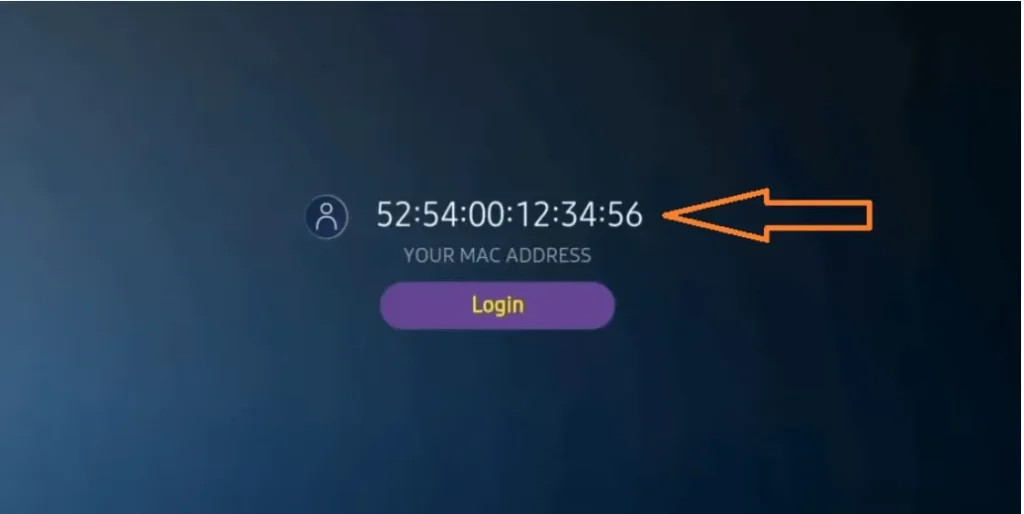
- Launch the app and write down the MAC address displayed on the screen.
Installation on Fire TV Stick or Fire TV
- On your Fire TV, go to Settings > My Fire TV > Developer Options.
- Enable Apps from Unknown Sources.
- Download the Downloader app from the Amazon Store.
- Open Downloader and enter the following URL: flixiptv.cc/flix.apk
- Download and install Flix IPTV.
Installation on Android TV and Apple TV
- Open your device’s app store.
- Search for Flix IPTV and download it.
- Launch the app and take note of the displayed MAC address.
How to Configure Flix IPTV with an M3U Link
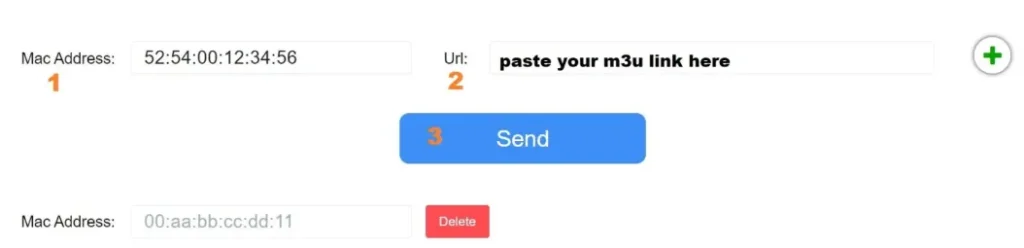
To load your IPTV channel list in Flix IPTV, follow these steps:
- Visit flixiptv.eu/mylist.
- Enter your device’s MAC address.

- Paste your M3U URL provided by your IPTV provider.

- Click Send, then restart the app on your device.
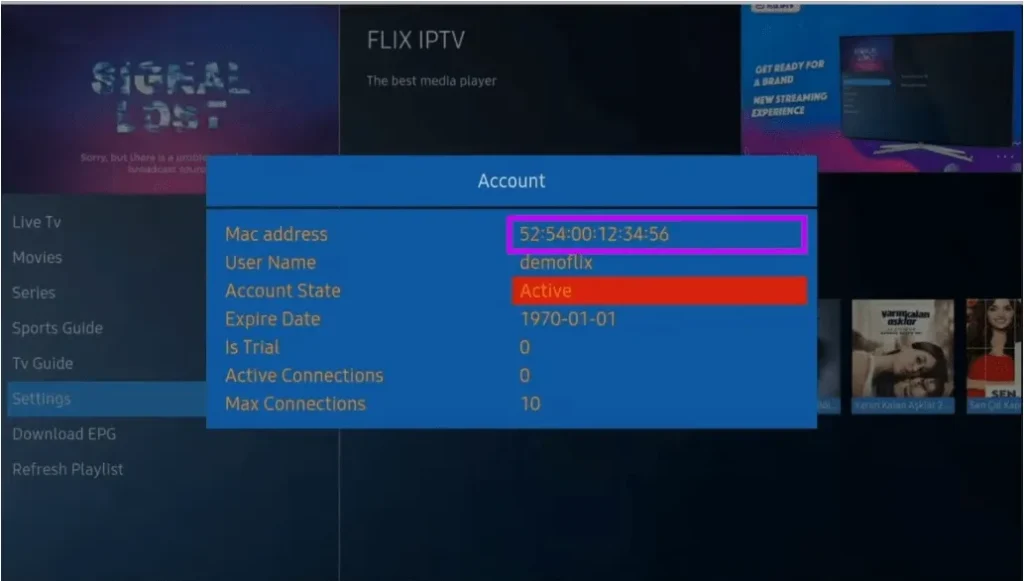
Note: You can also manually refresh your playlist in Settings > Change Playlist.
How to Activate Flix IPTV After the Free Trial
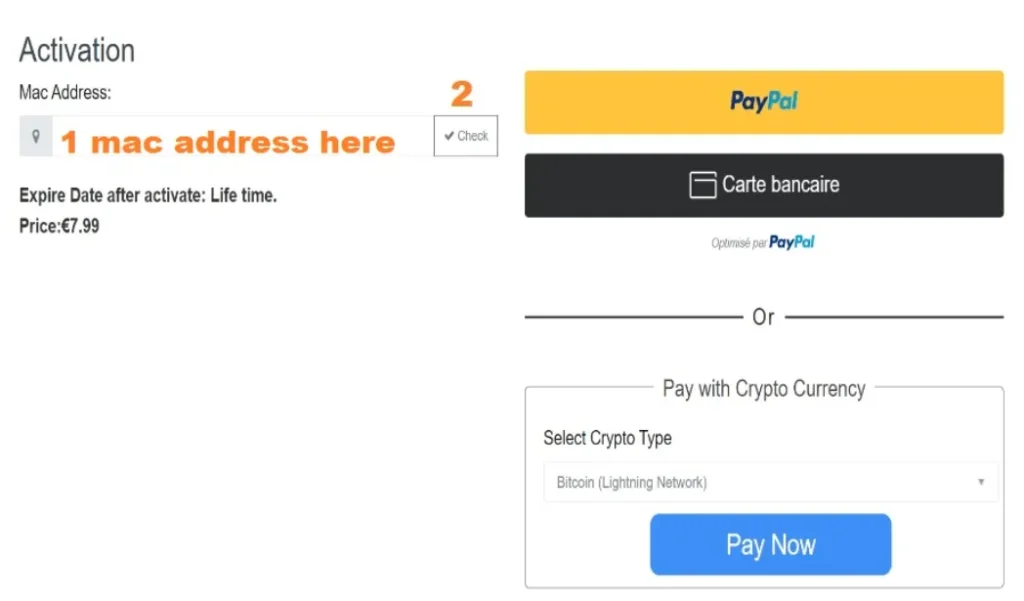
Flix IPTV offers a 7-day free trial. Once this period ends, you must pay a one-time activation fee to continue using the app.
Activation Cost: €7.99 (one-time payment per device)
Activation Steps:
- Visit flixiptv.eu/activation.
- Enter your device’s MAC address.
- Complete the one-time payment and enjoy lifetime access to Flix IPTV.
Common Flix IPTV Issues and Solutions
- Channels Not Showing After Loading M3U List
- Verify that your M3U link is valid and active.
- Restart Flix IPTV and refresh the list from Settings.
- App Crashes or Doesn’t Respond
- Uninstall and reinstall Flix IPTV to remove errors.
- Ensure your device has enough storage space.
- Subtitles Not Displaying
- Enable subtitles in Settings > Subtitle Configuration.
- Use a compatible external player such as VLC.
Conclusion
Flix IPTV is one of the best apps for streaming IPTV on Smart TVs and FireStick. With this guide, you now know how to:
- Install Flix IPTV on any device.
- Load your M3U playlist correctly.
- Activate the app after the free trial.
- Fix common playback or connection issues.
Ready to experience premium IPTV streaming? Get your free trial today and enjoy the best channels, movies, and live content in high quality.
Get Your Free Trial Now at Vistar Stream