
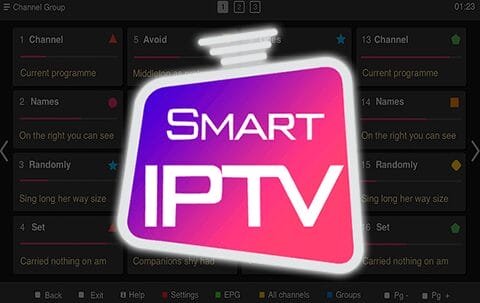
Ultimate Guide to Setting Up Smart IPTV Step-by-Step
To use any IPTV subscription from your preferred provider, you’ll need a reliable way to set up and access your channels smoothly. Among the many IPTV players available today, Smart IPTV stands out as one of the most trusted and user-friendly options. This app allows you to easily organize, stream, and manage your IPTV playlists with high-quality performance and minimal buffering.
In this complete guide, you’ll learn how to use Smart IPTV, including how to upload your M3U playlist, activate the app, and troubleshoot common issues to ensure a seamless viewing experience. Whether you’re using a Smart TV, Fire Stick, or Android device, Smart IPTV provides a flexible and powerful solution for accessing your favorite channels.
For a detailed explanation of how IPTV technology works, visit:
Internet Protocol Television – Wikipedia
Which Devices Are Compatible with Smart IPTV?
Smart IPTV works perfectly on Samsung and LG smart TVs. You can also use your M3U playlist on devices such as Android TV, MAG set-top boxes, and Amazon Fire TV.
Keep in mind that the app doesn’t come pre-installed on these devices — after purchasing your Vistar Stream subscription, you’ll need to download and install it manually.
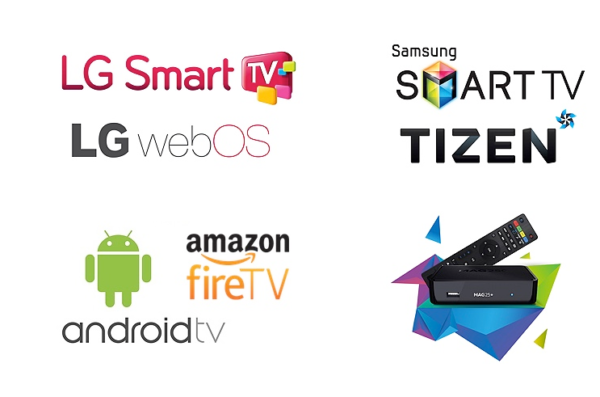
How to Download the Smart IPTV App
Once you have a compatible device, the next step is to download the Smart IPTV app. First, make sure your device is connected to the internet. Then, go to your TV’s home screen and open the app store. Inside the store, search for “Smart IPTV.” If you can’t find it right away, check under “All Apps.” Once you locate it, download and install it.
Uploading the M3U Playlist
After installing the app, the next step is to upload your M3U playlist so you can start watching your favorite channels. To do this, visit siptv.eu/mylist from any internet-connected device. On the website, navigate to the section labeled “Upload local IPTV playlist file.”
Enter your device’s MAC address (displayed on the Smart IPTV app screen) and upload your M3U playlist file or paste the playlist URL provided by your IPTV provider. Once the upload is complete, click Send or Upload to save your list.
Afterward, simply close the app and restart your device. When you reopen Smart IPTV, your channel list will automatically load, giving you instant access to live TV, movies, and series. You can now browse, favorite, and organize your content easily for a personalized streaming experience.