
Introduction
Smarters Pro is one of the most popular and reliable IPTV player applications, compatible with multiple devices including smartphones, tablets, Smart TVs, and Amazon FireStick.
With its intuitive interface, broad format compatibility, and smooth playback performance, this versatile app has become the go-to choice for users who want to enjoy live television, movies, and on-demand content anytime, anywhere.
In This Guide, You’ll Learn:
- Main Features – Discover the key tools and benefits that make this app one of the best IPTV players available.
- Installation Steps – Follow easy instructions to download and set it up on Android, iOS, Smart TV, FireStick, and more.
- Configuration Tips – Learn how to add your M3U playlist or portal URL and adjust settings for a personalized experience.
- Troubleshooting – Find quick fixes for buffering, connection errors, and other common streaming issues.
What Is IPTV Smarters Pro and How Does It Work?
This powerful and user-friendly IPTV application connects directly to your IPTV provider, giving you access to a full world of entertainment at your fingertips.
With this platform, users can easily enjoy:
- Live TV Channels – Stream your favorite shows, sports, and news in real time.
- Movies and Series On Demand (VOD) – Access a wide library of on-demand films and TV shows.
- EPG (Electronic Program Guide) – View schedules and program details in an organized interface.
- Multi-Device and Split-Screen Support – Watch on multiple screens or divide your display for a multi-view experience.

Main Features of IPTV Smarters Pro
1. Intuitive, Easy-to-Use Interface
A modern design and fluid navigation make it simple to browse your favorite channels and content without hassle.
2. Support for Multiple Playlists
Connect to several IPTV providers and easily switch between M3U lists or Xtream API accounts.
3. Live TV and On-Demand Streaming
Watch real-time HD channels and enjoy access to on-demand movies and series anytime.
4. Electronic Program Guide (EPG)
View program schedules, episode details, and plan your viewing with an integrated TV guide.
5. Multi-Device Playback
Compatible with Smart TVs, Android, iOS, Windows, FireStick, and more.
6. Parental Control and Customization Options
Filter inappropriate content.
Create favorites lists and personalize user settings for a tailored experience.
How to Install IPTV Smarters Pro on Any Device
Android and iOS Installation
Download IPTV Smarters Pro from the Google Play Store or Apple App Store.
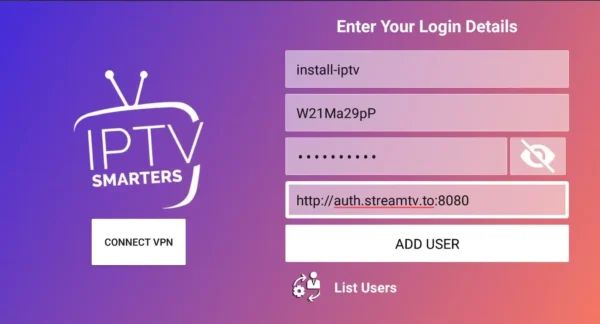
Open the app and enter your IPTV provider’s credentials (M3U URL or Xtream API).
Customize your channel list and adjust settings as desired.
Enjoy instant access to your IPTV content.
Installation on Smart TV (Samsung & LG)
Go to your TV App Store.
Search for “IPTV Smarters PRO” and download it.
Enter your IPTV subscription details.
Adjust image and sound quality as you prefer.
Installation on FireStick (Amazon Fire TV)
Enable External Apps
Go to Settings > My Fire TV > Developer Options
Activate “Apps from Unknown Sources.”
Install Downloader
Search for “Downloader” in the app store and install it.
Download IPTV Smarters PRO
Open Downloader and type:
https://www.iptvsmarters.com/smarters.apk
Install and Configure the App
Open IPTV Smarters PRO and enter your IPTV provider details.
Installation on Windows & Mac
- Download IPTV Smarters PRO from the official website.
- Install the application on your PC or Mac.
- Enter your username, password, and server URL.
- Configure your preferences and start watching.
How to Configure IPTV Smarters PRO
Method 1: Load M3U Playlist Manually
Steps:
- On the home screen, select Add User.
- Choose Load from File or URL.
- Enter the M3U link provided by your IPTV provider.
- Click Save and wait for the channels to load.
Method 2: Configure IPTV via Xtream Codes API
If your provider uses Xtream Codes, follow these steps:
Select Add User in the app.
Enter the following details:
- Username
- Password
- IPTV Server URL
Save changes and access the content.
How to Use IPTV Smarters PRO in Your Browser
If you prefer watching IPTV without installing apps, use the Web Player.
Access IPTV Smarters Web Player
Compatible with Chrome, Safari, Firefox, and Edge.
Common Problems & Solutions in IPTV Smarters PRO
Error: “Cannot Load Channels”
Check that the M3U link or Xtream API credentials are correct.
Contact your provider to confirm the server is active.
IPTV Smarters PRO Crashes or Freezes
Clear the app cache from your device settings.
Uninstall and reinstall the app to fix errors.
EPG Not Loading Properly
Verify that the EPG URL is entered correctly in the app settings.
Conclusion
IPTV Smarters PRO is a complete and versatile IPTV app for enjoying IPTV on any device.
With this guide, you now know how to:
Install IPTV Smarters PRO on Android, iOS, Smart TV, FireStick, Windows & Mac
Configure it using M3U or Xtream Codes
Fix common issues and optimize your experienceReady to try IPTV?
Get your free trial and enjoy the best streaming content online!