I must be clear: SS IPTV is not available in the Amazon App Store. This means you can’t install it using the standard method — instead, you’ll need to use the Downloader app to sideload the APK file.
Don’t worry — this method is much easier than it sounds. Follow the steps below to install SS IPTV on your FireStick:
Step-by-Step Guide to Install SS IPTV on FireStick
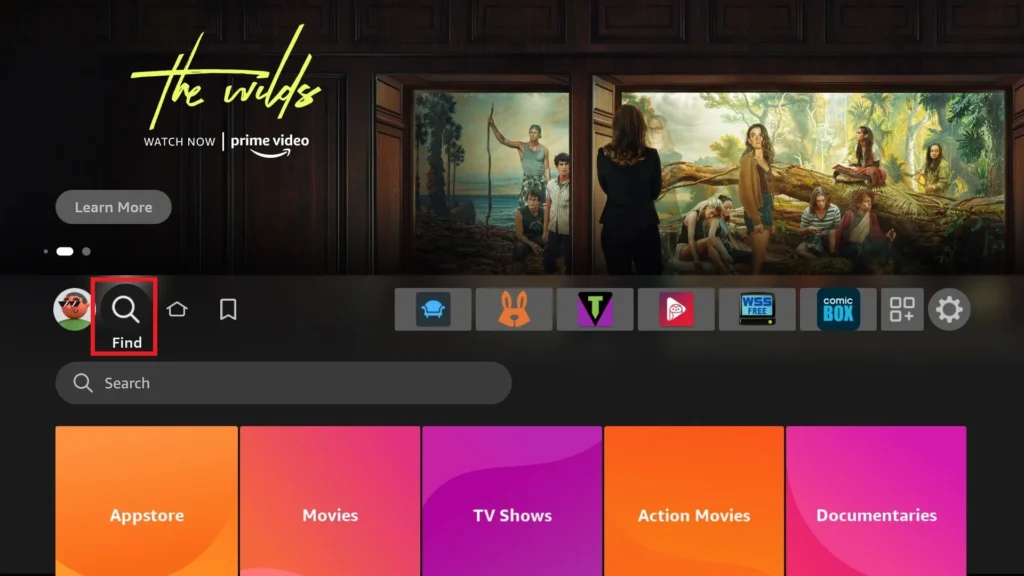
- Turn on your FireStick and go to “Find” on the home screen

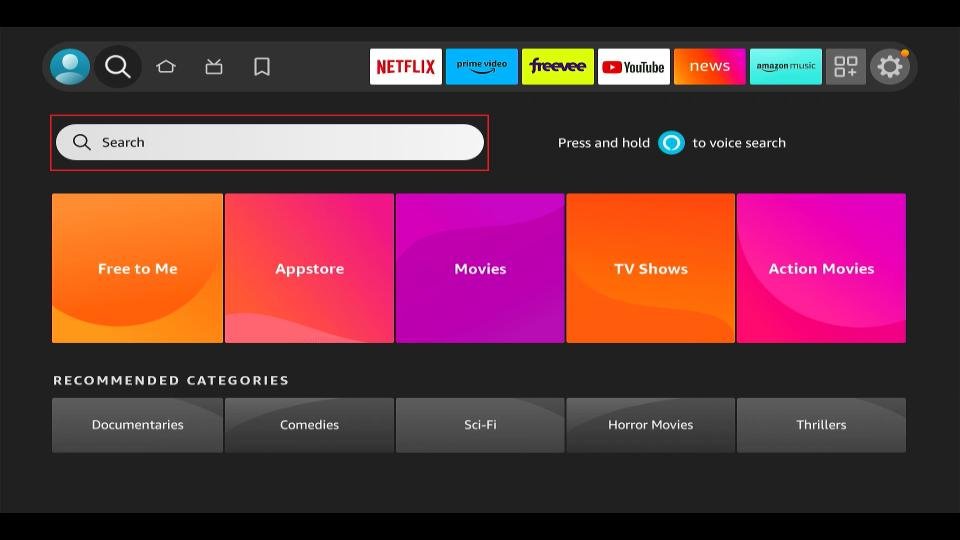
- Select “Search” and type Downloader (you can also use the Alexa voice assistant).

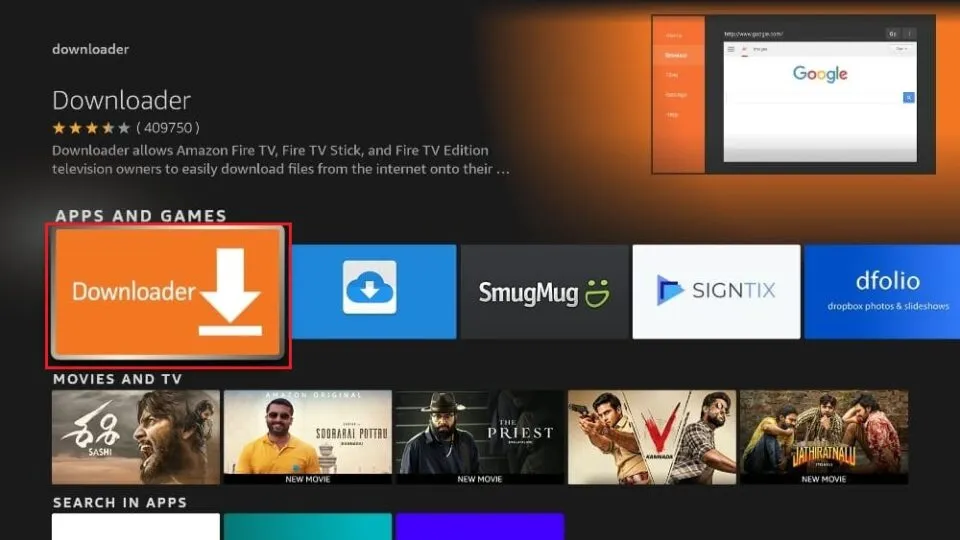
- When Downloader appears in the search results, select it.
- Choose Downloader under Apps & Games — it’s easily recognizable with its orange background.
- Click Download or Get to install the app on your device.
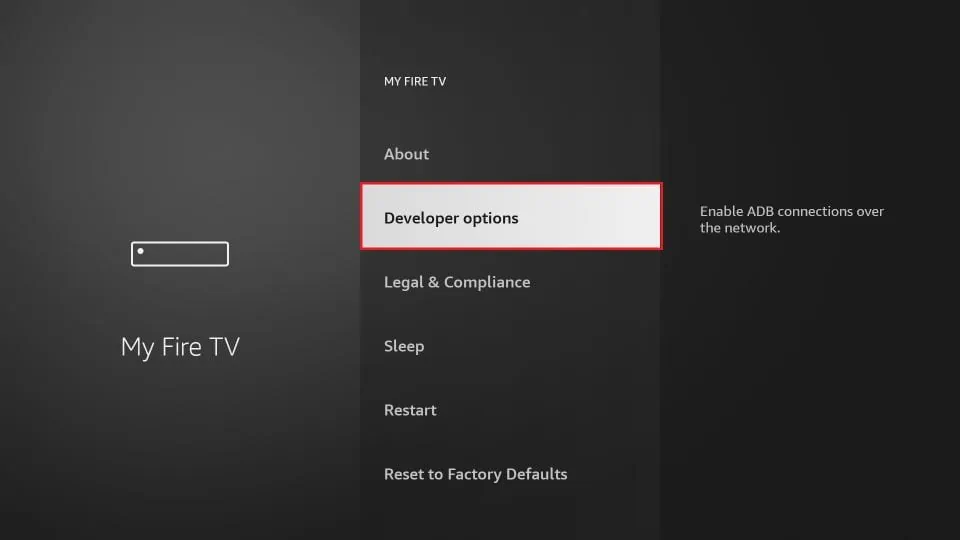
- Press and hold the Home button on your FireStick remote, then select Settings. Choose My Fire TV.
- Click on Developer Options.
- Scroll to Install Unknown Apps and enable it for Downloader. (Now that you’ve enabled this setting, you can install third-party apps like SS IPTV.)

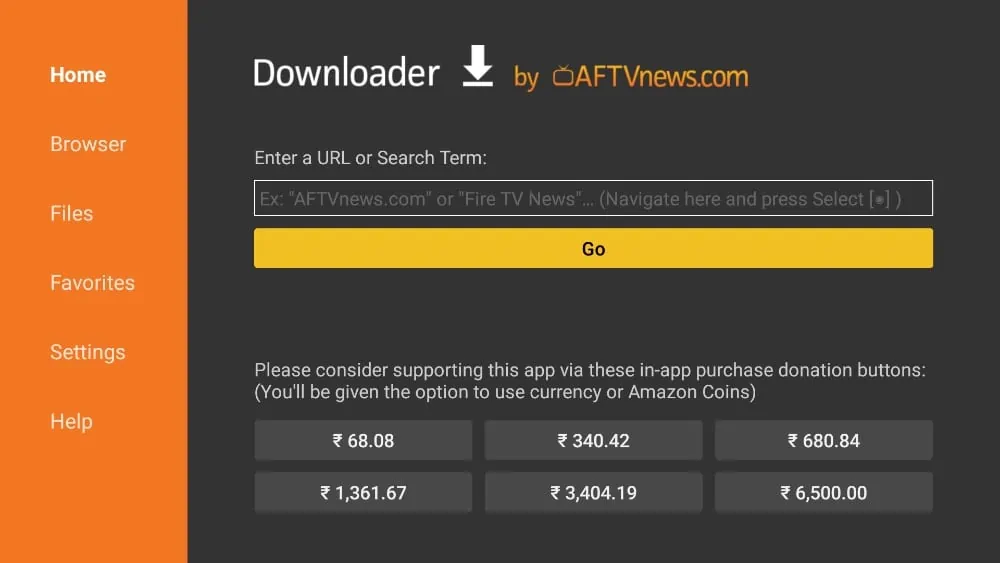
- Return to your FireStick home screen and open the Downloader app.
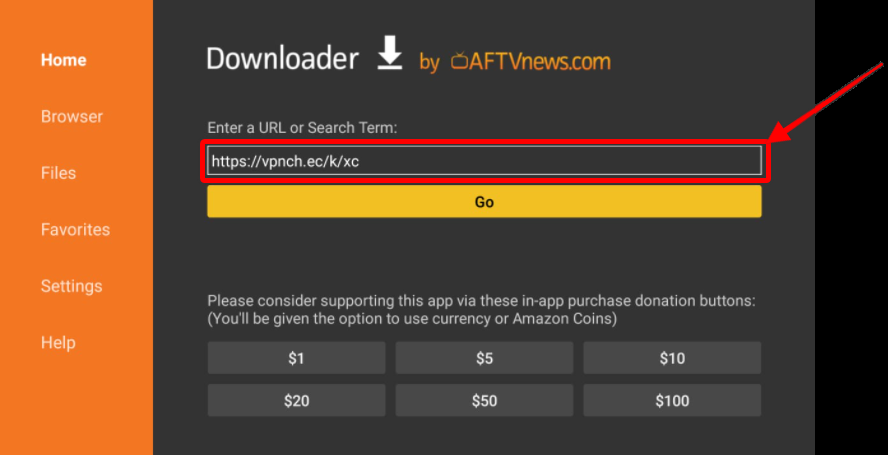
- Select the URL box and type https://bit.ly/3cXf8tr, then click Go.

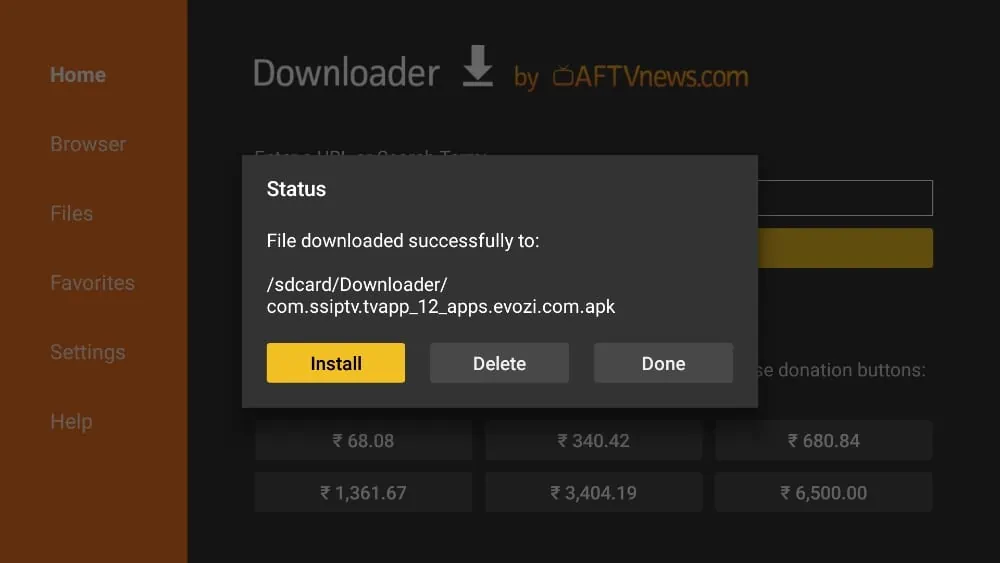
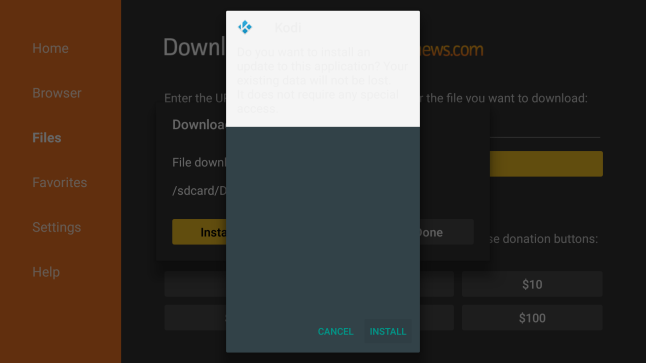
- Downloader will fetch the APK file from the URL and prompt you to install it on your FireStick. Click Install.
- Once the installation is complete, you can delete the APK file to free up storage space — it’s no longer needed.

Get a Free Trial of Our Service!
Subscribe Now!
How to Use SS IPTV on Amazon FireSticK ?
- Open the FireStick home screen and scroll to the Apps menu.
- From Your Apps & Games, locate and launch the SS IPTV app.
- Accept the User Agreement, and you’re ready to start using the app.
When you first launch SS IPTV, it will prompt you to select your preferred IPTV provider. One of the great things about this app is how it guides you step by step through a clear and simple selection process.
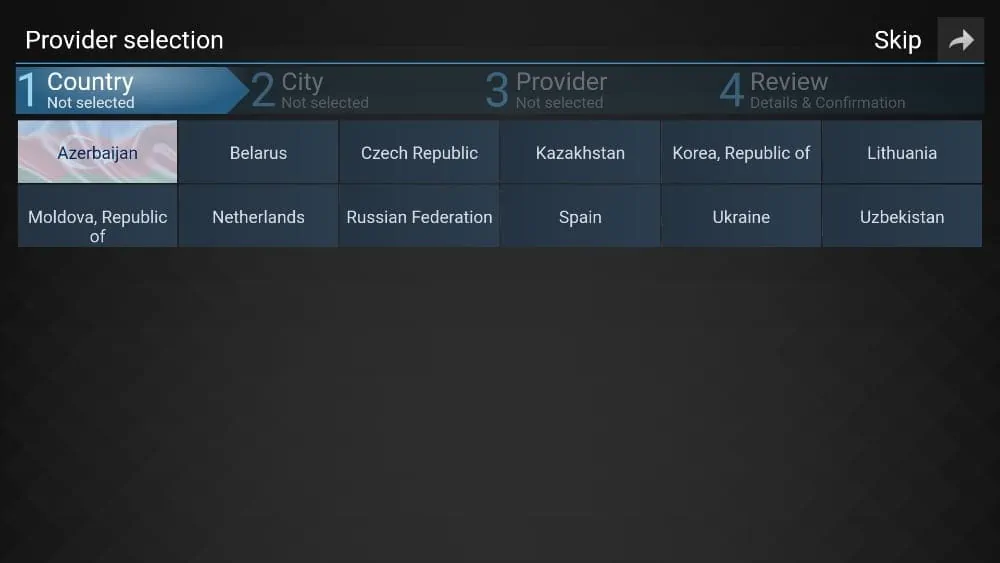
First, select your country, then choose your city from the following menu.
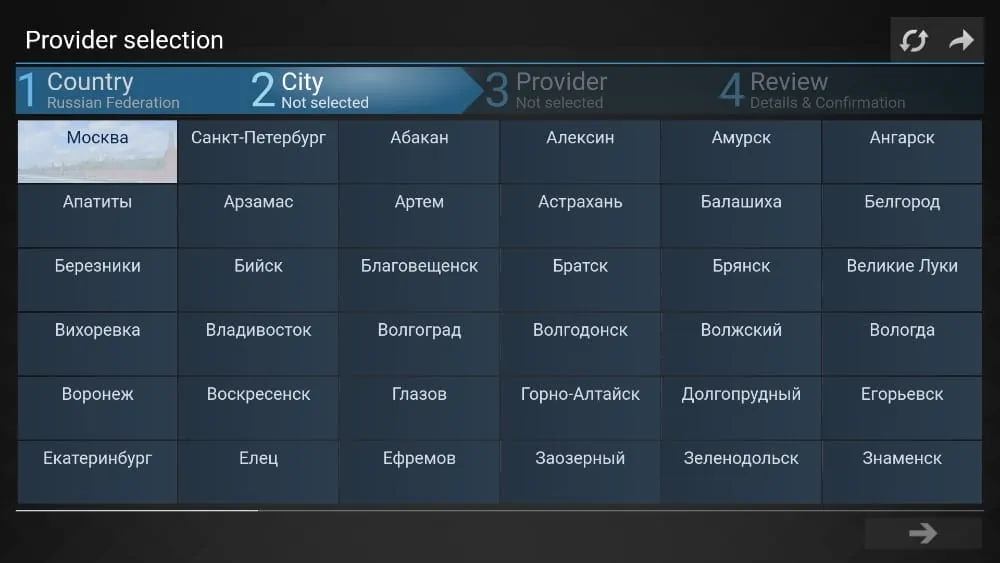
Next, pick your IPTV provider and confirm your selection.
Give it a few seconds — the app will then connect to the selected channel and start streaming it over the internet.
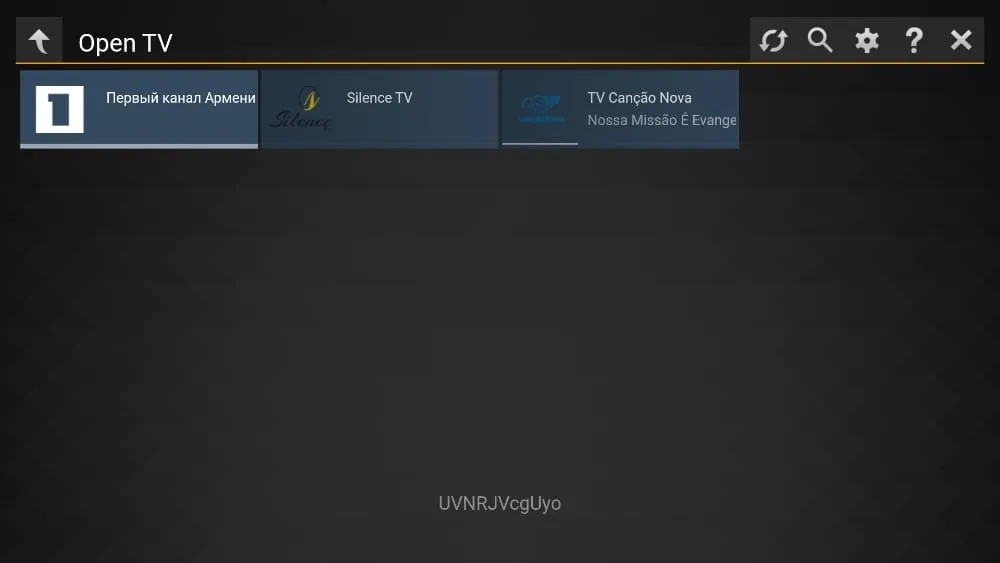
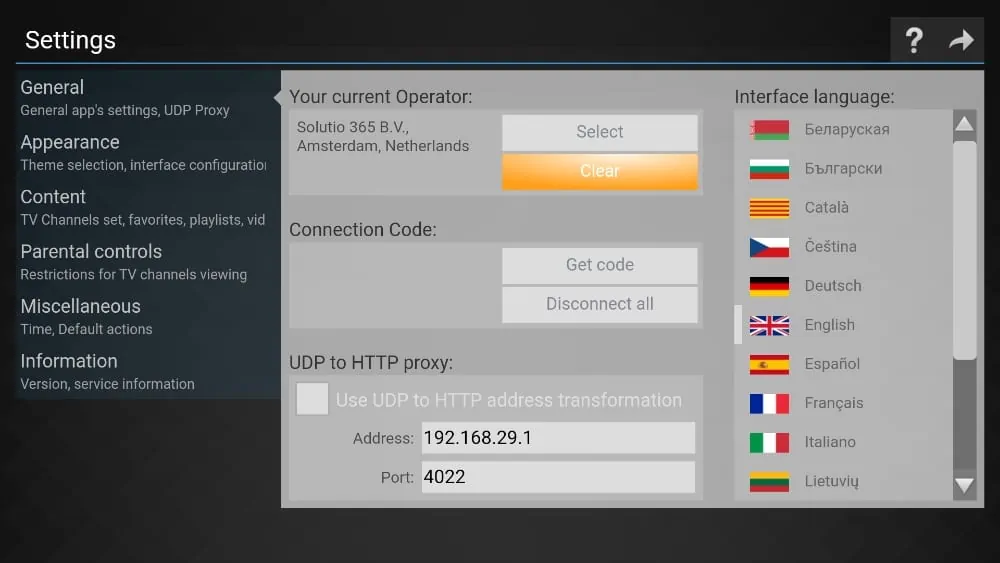
If you ever want to switch providers or explore content from another country, SS IPTV makes it incredibly easy. Just go to Settings → General → Clear Current Provider, and then select a new provider to begin streaming again.
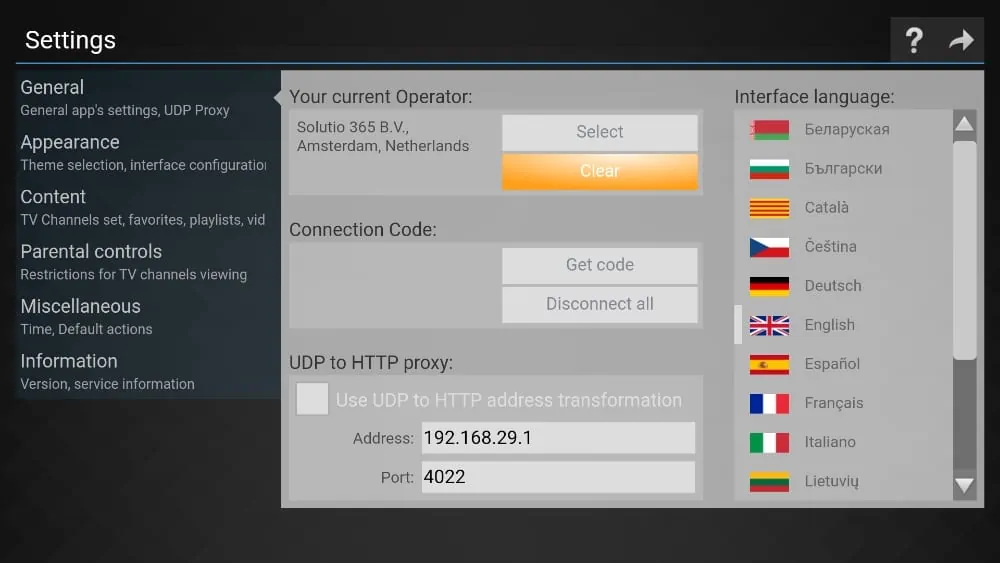
How to Access SS IPTV on FireStick
If you find your favorite TV channel on SS IPTV, you might get hooked! To make your experience smoother, it’s best to add the app to your FireStick home screen for quick access. Follow these simple steps:
- Press and hold the Home button on your FireStick remote.
- Select Apps from the menu that appears.
- Scroll to SS IPTV and press the Options button (≡) on your remote.
- Choose Move and place the app in your preferred position.
- The SS IPTV app is now easily accessible from your home screen.
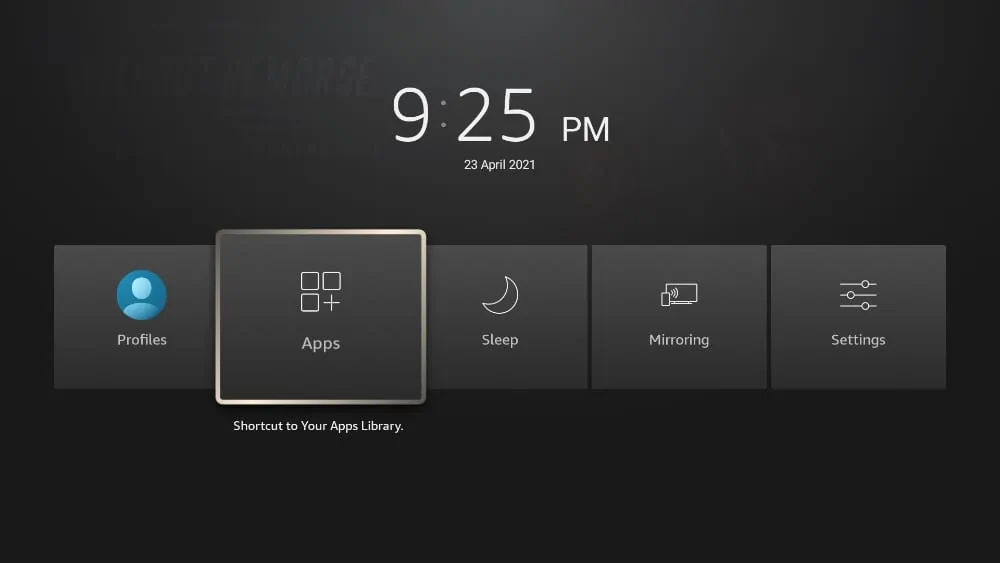
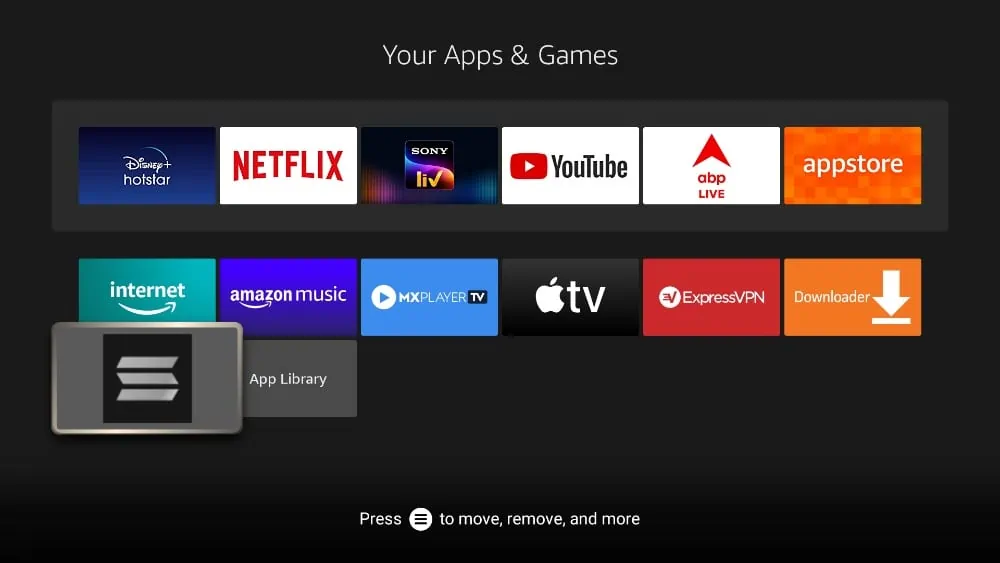
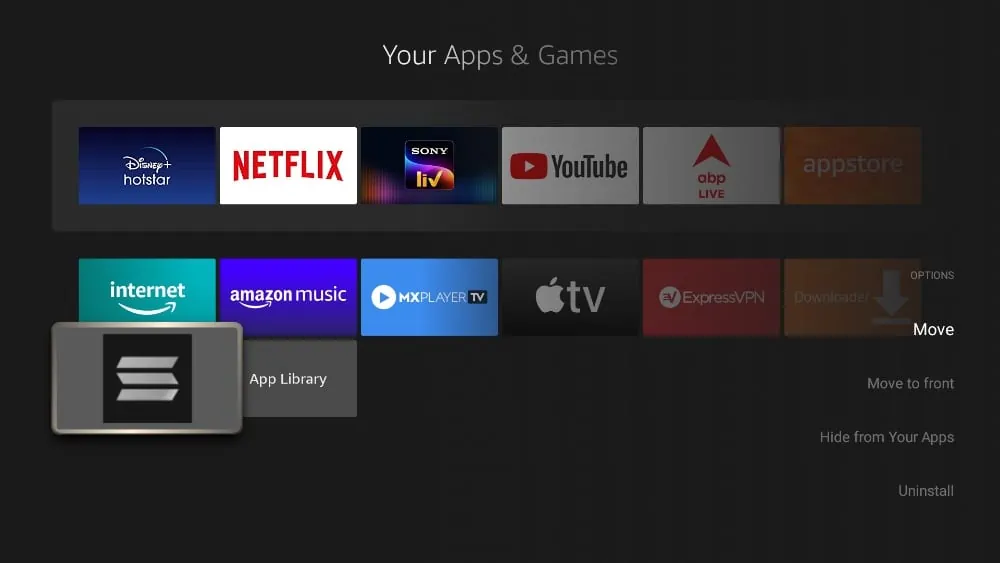
Note: If you have fewer than 20 apps installed on your FireStick, SS IPTV will automatically appear in the Your Apps & Channels section on your home screen.
This setup ensures you can launch SS IPTV instantly and start streaming your favorite channels without wasting time navigating through menus.
SS IPTV Features
SS IPTV isn’t limited to just content streaming — the developers have added several features designed to enhance the user experience. Here are some of its most notable functions:
Interface Languages : You can choose from over 15 interface languages. By default, the app is set to English, but you can easily change it from the Settings menu to your preferred language.