
How to Set Up ExpressVPN on Firestick?
This article will teach you how to install ExpressVPN on Fire Stick, why it’s considered the best option for IPTV users, and how to enhance your viewing experience with this service.
The setup process described in this guide is compatible with Fire Stick 4K, Fire Stick 4K Max, Fire TV Cube, the new Fire Stick 4K, the new Fire Stick 4K Max, and Fire Stick Lite. By using ExpressVPN, you can protect your online privacy, bypass geo-restrictions, and ensure a safer and faster connection while enjoying IPTV content on your Fire Stick.
In addition, This VPN stands out as one of the most reliable options due to its speed and ease of use, making it the top choice for users who want to maximize their entertainment experience on Fire Stick.
In the following sections, we’ll guide you step by step through the process of installing top-rated vpn on your Fire Stick device.
Why Use ExpressVPN on Fire Stick?
Before diving into the setup process, let’s explore why using VPN on your Fire Stick is an excellent choice:
Access Geo-Restricted Content: With fast and secure VPN, you can bypass geographic restrictions and access a wider selection of content from global streaming providers.
Enhanced Security: private VPN uses military-grade encryption to protect your data and privacy, preventing hackers and third parties from monitoring your online activity.
Faster Streaming: Enjoy faster streaming speeds with Express VPN’s optimized servers — no throttling, buffering, or connection drops.
These benefits make ExpressVPN one of the best options for Fire Stick users who want to elevate their online entertainment experience.
How to Set Up ExpressVPN on Firestick: Simple Steps
This premium VPN service offers a wide range of connection options, with over 3,000 servers in 160 cities across more than 90 countries. It includes advanced security tools such as split tunneling, 256-bit AES encryption, an automatic kill switch, IPv6/DNS leak protection, and a strict no-logs policy, ensuring complete privacy and reliable data protection.
With a single subscription, users can connect up to eight devices simultaneously, including Fire Stick, Android, iOS, Windows, and Mac. For those who want to secure their entire home network, the VPN can also be configured at the router level, protecting every connected device.
Using this trusted VPN on your Fire Stick allows you to stream any content freely, without worrying about blocks or geo-restrictions. Recognized as a leader in VPN technology, it stands out for its exceptional performance, robust security, and ease of use — making it one of the best VPN options for Fire Stick users.
Step 1: Subscribe to ExpressVPN
First, subscribe to ExpressVPN if you haven’t done so yet:
Visit the official ExpressVPN website, choose a plan that best fits your needs, complete the registration process, and keep your login details handy.
Step 2: Install ExpressVPN on Fire Stick
Start your Fire Stick:
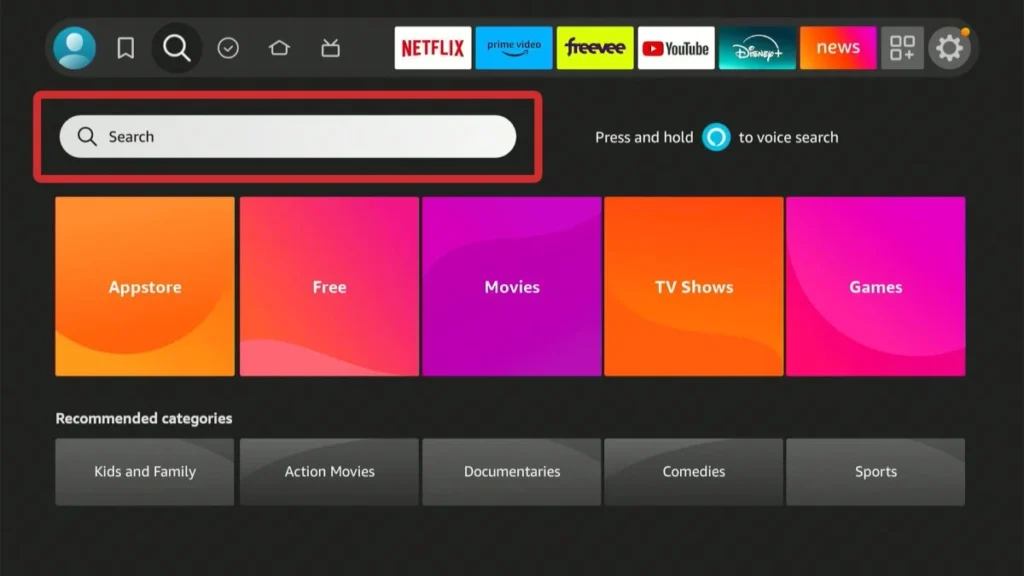
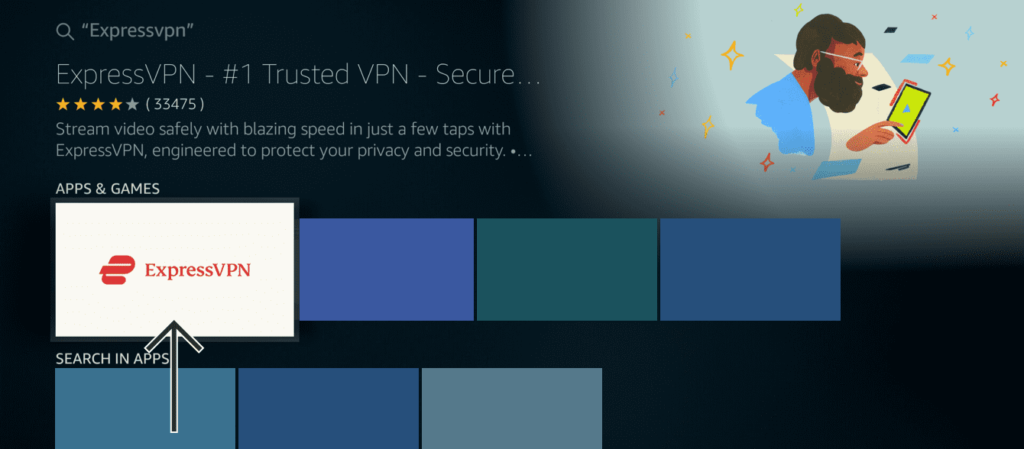
Search for the VPN app — Go to the search icon (magnifying glass) located in the upper-left corner of your Fire Stick home screen.
Type “Express VPN” in the search bar and select it from the list. (As shown in the image below)
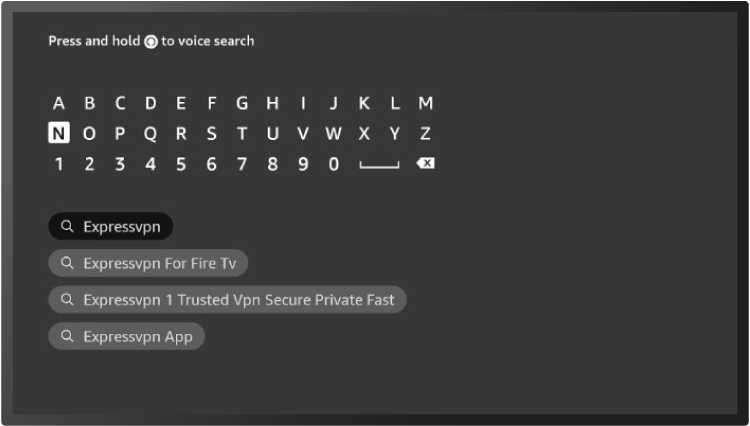
Download the app: Select the ExpressVPN application and click on “Download” or “Get.”
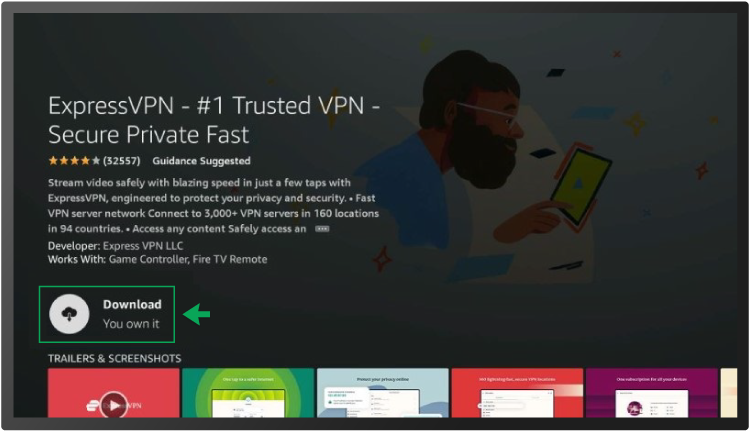
Step 3: Sign in to ExpressVPN
Open the app: Once the installation is complete, launch the VPN application.
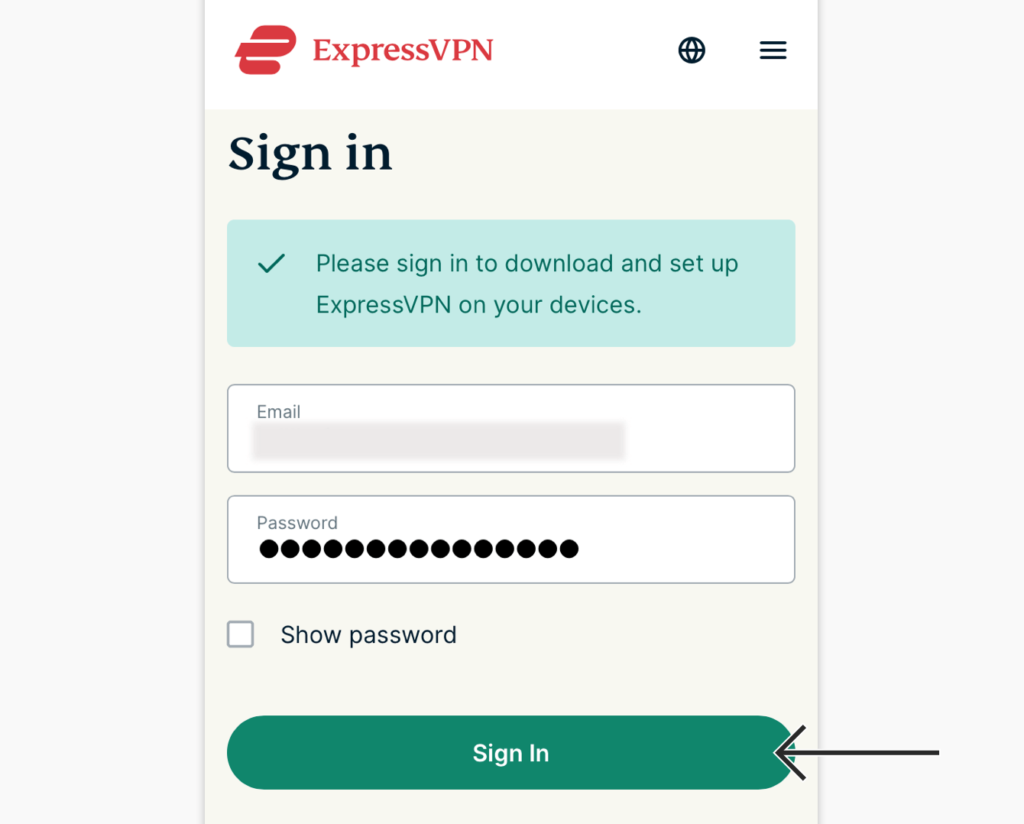
Sign in: Enter your login credentials (email and password) to access your account. Make sure you have this information ready, as you saved it earlier when creating your subscription.
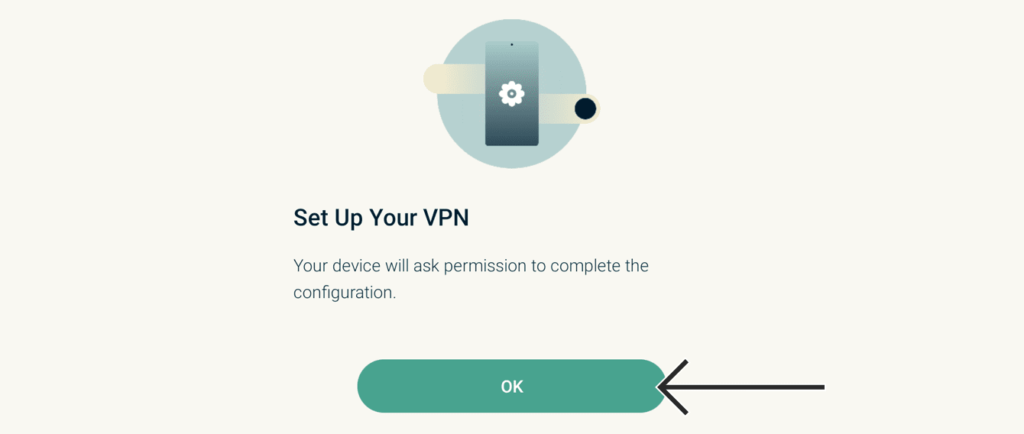
Click Accept when you see the message “Set up your VPN.”
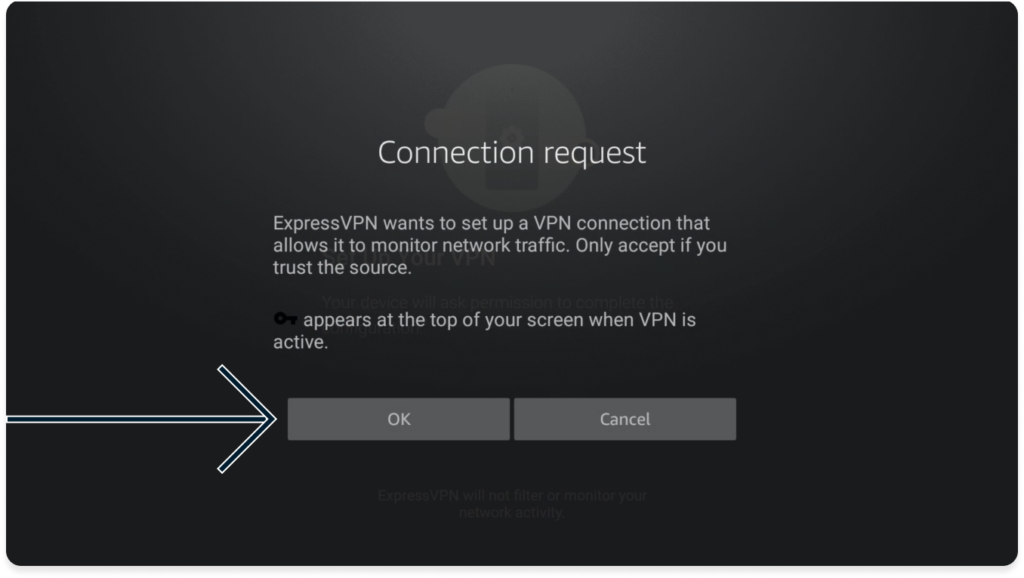
Click Accept when the message “Connection Request” appears.
Step 4: Connect to a VPN Server
Everything is ready to use. ExpressVPN will automatically select a smart location for you, optimized to provide the best possible connection.
To quickly connect to a VPN server, simply click the Connect button. If you prefer to switch to another server, select the Current Location button to choose a different location from the available list.
Tips for Using ExpressVPN on Fire Stick:
Automatic Connection: To ensure continuous protection every time you use your Fire Stick, enable the automatic connection feature in the ExpressVPN app settings. This guarantees that you’re always connected to a VPN server when using your device.
Switch Servers: If you experience slow speeds, try switching to a different server. This can significantly improve your streaming or browsing experience.
Notify Your IPTV Provider: It’s recommended to inform your IPTV provider that you’re using a VPN to avoid access or blocking issues.
Choose Nearby Servers: Always select a server in a country close to your own. For example, if you’re in the USA, choose servers in Canada or Mexico to maintain good connection speed and low latency.
Get a free trial of our service!
Subscribe now!